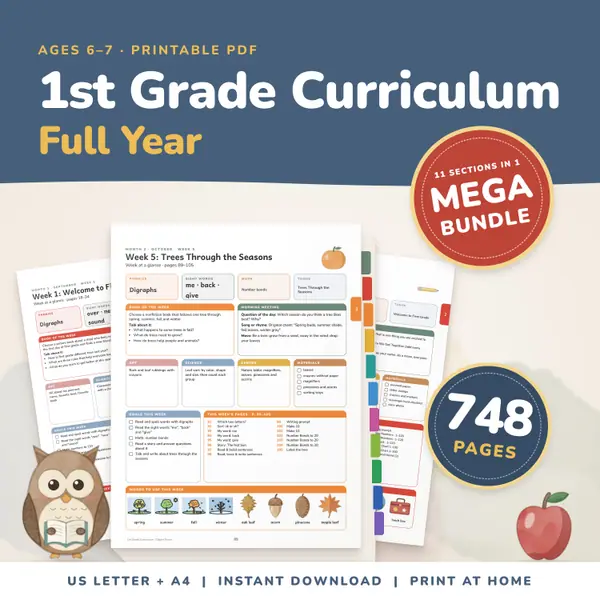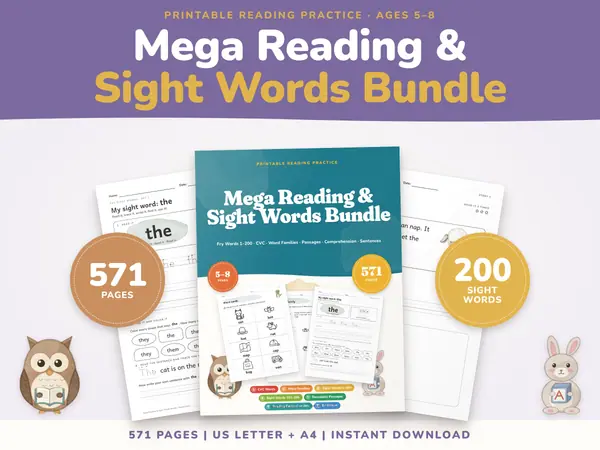
Sight Words and Reading Bundle
571 pagesUS Letter + A4Kindergarten & 1st gradeEnglish
See price and buy on EtsyWrite one card on each line with a bar between the two sides, like hello | bonjour. Press Study the cards to see one large card. Press it or the space bar to turn it over, then use next, previous and shuffle. The print button makes a sheet of eight cards per page with cut lines, fronts first and then backs.
Free to use, no sign-up. Everything runs in your browser: nothing you type is uploaded.
Put the vertical bar between the two sides of each card. Lines without both sides are skipped.
Press the card or the space bar to turn it over.
Type one card per line with a vertical bar between the sides, for example a word and its meaning, a question and its answer or a sum and its result.
Press Study the cards. One large card appears with a count such as 3 / 8. Press the card or the space bar to see the other side.
Use Next and Previous to move along, or Shuffle to mix the order and start again from the first card. Full screen makes the card big enough for a whole class.
Press Print cards for a page of eight fronts followed by a page of eight backs. Print on both sides of the paper and cut along the dashed lines.
Put a new word on the front and its meaning or translation on the back. Learners test themselves, then shuffle to meet the words in a new order.
Write a sum on the front and the answer on the back. Short daily rounds help facts stick, and printed cards can be kept in a pocket.
Print the words a child is learning to read. Keep the pile they know and shuffle the rest back in for another try tomorrow.
Turn dates, definitions or formulas into cards and let students quiz one another in pairs, using the full screen on a shared tablet.
571 pagesUS Letter + A4Kindergarten & 1st gradeEnglish
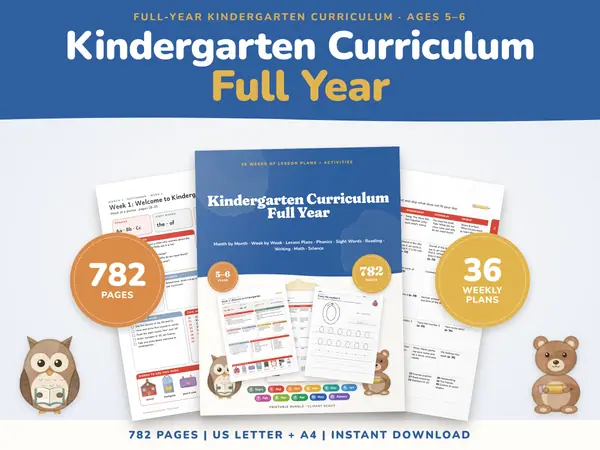
See price and buy on Etsy782 pagesUS Letter + A4KindergartenEnglish
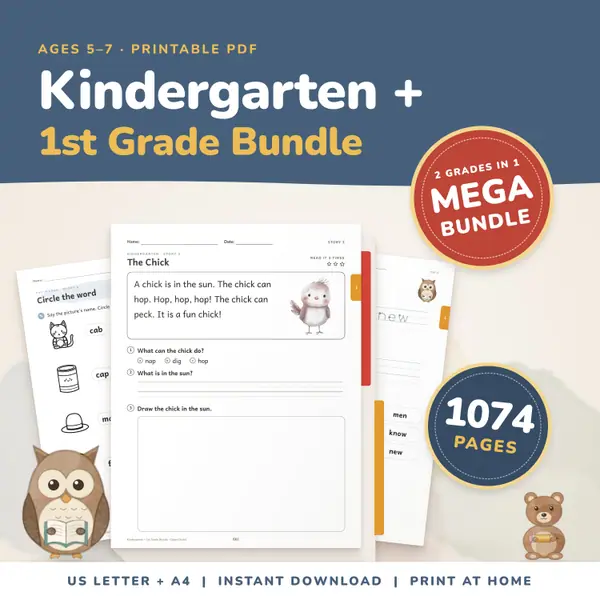
See price and buy on Etsy1,074 pagesUS Letter + A4Kindergarten & 1st gradeEnglish
See price and buy on EtsyYes. It costs nothing, needs no sign-up and has no limit on the number of cards or sheets you print.
As many as you like. Study mode steps through all of them, and the print sheet adds a new pair of pages for every eight cards.
Yes, on the same device and browser. They are saved in the page storage of your own browser and are never sent anywhere.
The backs page is mirrored row by row, so when you print on both sides and flip the paper on the long edge, each back sits behind its own front.
Copy this code into your class page or blog. The tool is free; the small link under it tells your visitors where it comes from.
Updated