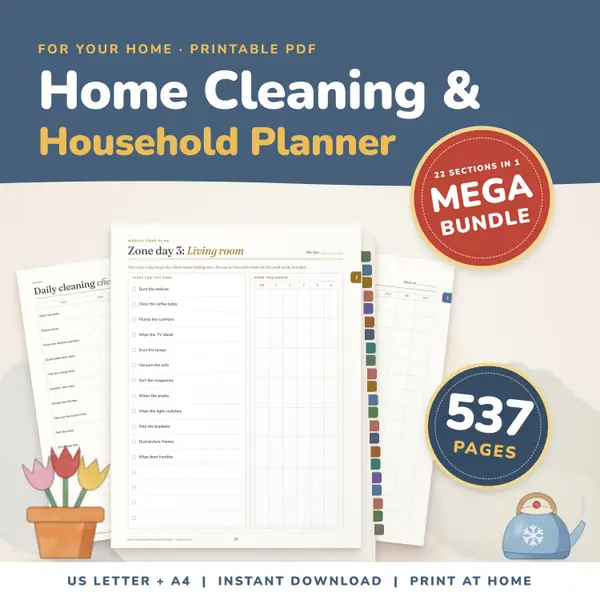
Home Cleaning and Household Planner Mega Bundle
537 pagesUS Letter + A4Teens & adultsEnglish
See price and buy on EtsyType a title, then fill in the times down the side and the lessons across each day. Choose Monday to Friday or all seven days, and start the week on Monday or Sunday. Press Add a row when you need more time slots. When the timetable looks right, press Print the timetable and it prints on A4 or US Letter paper.
Free to use, no sign-up. Everything runs in your browser: nothing you type is uploaded.
Your timetable is saved on this device only.
Pick Monday to Friday for a school week or all seven days for a family or homeschool routine. With seven days you can also start the week on Sunday.
Change the time in the first column to match your bell times, then click any square and type the subject, room or activity. Tab moves you along the row.
Press Add a row for each extra slot, such as break, lunch or an after-school club. Remove last row takes the bottom one away, and Clear the lessons empties the squares.
Press Print the timetable. Only the timetable is printed, as plain black text and lines, so it works on A4 or US Letter. Choose landscape in the print window for seven days.
Fill in the week once, print a large copy and put it by the door so pupils can check what comes next without asking. Update the file and print again when the term changes.
Use short slots for reading, maths, outdoor time and chores. Seven days lets you include weekend activities, and the saved version is there next time you open the page.
Print one sheet per child and tape it inside a planner or exercise book. Pupils who find change hard can see exactly when each lesson and break happens.
Leave a printed copy with a visiting teacher or classroom helper. Put the room, group or resource in each square so the day runs smoothly when you are away.
537 pagesUS Letter + A4Teens & adultsEnglish
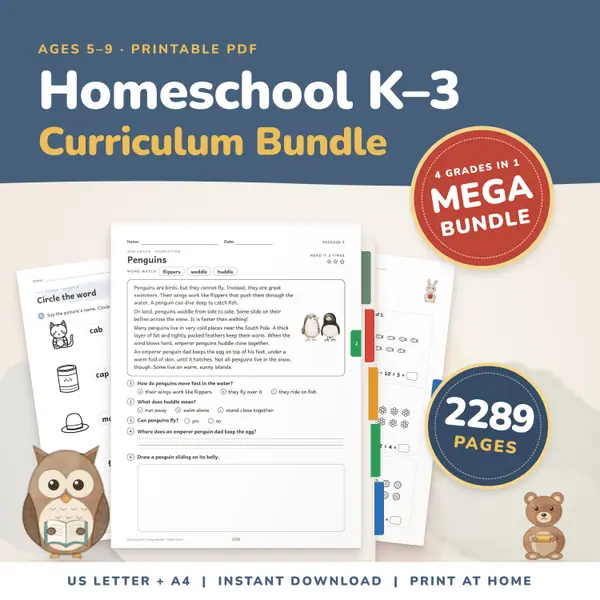
See price and buy on Etsy2,289 pagesUS Letter + A4Kindergarten to 3rd gradeEnglish
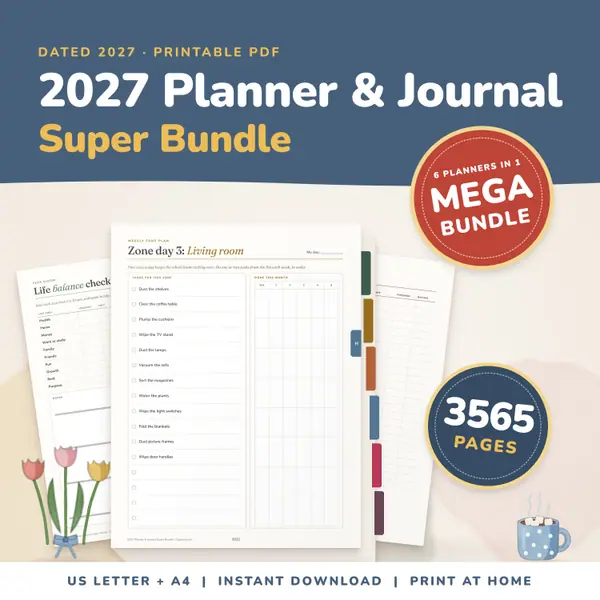
See price and buy on Etsy3,565 pagesUS Letter + A4Teens & adultsEnglish
See price and buy on EtsyYes. It is free to use, with no sign-up and no limit on how many times you print. Change the timetable as often as you like.
No. Everything you type stays in your browser on this device. Nothing is uploaded, so the timetable is only there when you return on the same device and browser.
Yes. The times and squares are just text, so it works for a childcare rota, a club programme, a revision plan or a family chore week as well.
The squares you type in look like boxes on screen. On paper they print as plain text inside the table lines, which keeps the page clean and uses very little ink.
Copy this code into your class page or blog. The tool is free; the small link under it tells your visitors where it comes from.
Updated